
Introduction
The rise of smart mirrors has taken technology enthusiasts and home automation fans by storm. Imagine a mirror that not only serves as a reflective surface but also integrates with real-time data, like weather forecasts, traffic updates, calendar events, and more. Thanks to the versatility of the Raspberry Pi, transforming a regular mirror into a smart mirror is now easier than ever. This article walks you through the process of integrating displays with Raspberry Pi to create a cutting-edge Smart Mirror, complete with a sleek user interface and useful functionalities.
What is a Smart Mirror?
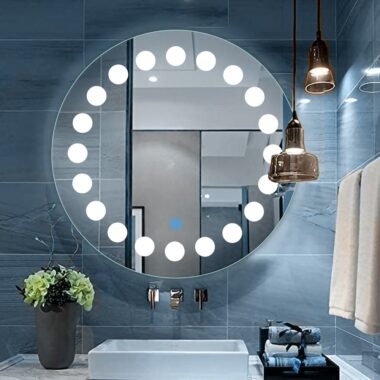
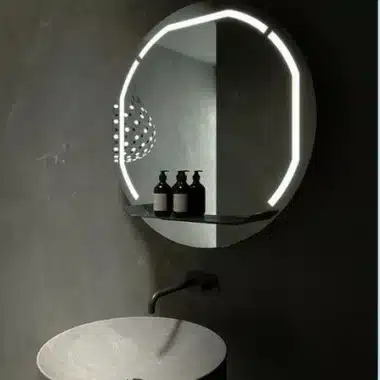
A Smart Mirror is essentially a two-way mirror with a built-in display behind it. This display can show a variety of useful information, such as time, date, weather forecasts, news, and even personal reminders or social media updates. While the basic concept remains a reflective surface, the magic lies in the embedded display technology that interacts with users, offering real-time data.
Benefits of Using Raspberry Pi for a Smart Mirror
Raspberry Pi is an affordable, compact, and versatile microcomputer that has gained popularity for DIY projects, including smart mirrors. Here are some key advantages of using Raspberry Pi in your smart mirror project:
Cost-Effective: Raspberry Pi boards are inexpensive, making it an accessible choice for hobbyists and DIYers.
Customization: You have complete control over the software and hardware, allowing you to customize the features of your Smart Mirror.
Versatility: Raspberry Pi can be integrated with various sensors, cameras, and other components to enhance the functionality of your Smart Mirror.
Community Support: There is an active Raspberry Pi community that offers plenty of resources, tutorials, and troubleshooting advice.
Materials Required for Building a Smart Mirror with Raspberry Pi
Before diving into the technical details, let’s take a look at the essential materials needed for the project:
Raspberry Pi (Model 3B or 4B recommended): The heart of your Smart Mirror, which powers the display and handles the data processing.
Two-Way Mirror: A mirror that allows light to pass through, enabling the display to show content while still being reflective.
Display Screen: An LCD or LED display that will be placed behind the two-way mirror.
Power Supply: A reliable power source for the Raspberry Pi and display.
MicroSD Card: Used for storing the Raspberry Pi’s operating system and the Smart Mirror software.
Cables: HDMI cable to connect the Raspberry Pi to the display, and other necessary cables for power and peripherals.
Frame: A wooden or metal frame to house the mirror and display neatly.
Internet Connection: To enable real-time data fetching (e.g., weather and calendar updates).
Step-by-Step Guide to Integrating Displays with Raspberry Pi for Smart Mirror
1. Set Up the Raspberry Pi
The first step is to prepare the Raspberry Pi for use. Here’s how:
Install Raspbian OS: Use the official Raspberry Pi Imager to download and install the Raspbian OS onto the microSD card. Once done, insert the card into your Raspberry Pi.
Connect Your Display: Using an HDMI cable, connect the Raspberry Pi to the display monitor. Ensure that your display is compatible with Raspberry Pi.
Configure Network: Connect the Raspberry Pi to the internet, either through Ethernet or Wi-Fi, depending on your setup.
Enable SSH: If you plan on accessing your Raspberry Pi remotely, enable SSH for easy access.
2. Install MagicMirror Software
MagicMirror is one of the most popular platforms for building Smart Mirrors with Raspberry Pi. Follow these steps:
Install MagicMirror: Open the terminal on your Raspberry Pi and run the following commands to install the MagicMirror software:
cd ~
git clone https://github.com/MichMich/MagicMirror
cd MagicMirror
npm install
Start the MagicMirror: To check if everything works, run the following command to start the mirror:
npm startConfigure the Mirror: Once the software is installed and running, you can configure the modules that you want to display (such as weather, calendar, time, etc.) by editing the
config.jsfile located in the~/MagicMirror/configdirectory.
3. Set Up the Two-Way Mirror
Now that the Raspberry Pi is up and running with MagicMirror software, it’s time to prepare the physical mirror:
Cut the Two-Way Mirror: Make sure the mirror is cut to fit the size of the display you’re using. The mirror should be slightly larger than the display to ensure proper coverage.
Place the Mirror Over the Display: Position the mirror on top of the display so that the screen is visible through the two-way mirror when the system is powered on. Secure the mirror in place using adhesive or a frame.
4. Final Assembly of the Smart Mirror
Build the Frame: Once the mirror and display are set up, create or buy a frame that fits around the mirror and display. The frame should conceal the edges of the display and any cables.
Mount the Raspberry Pi: Secure the Raspberry Pi at the back of the mirror frame, ensuring the HDMI and power cables are easily accessible.
Power the System: Connect the Raspberry Pi to the power supply, and ensure that the display also receives power.
5. Customizing the Smart Mirror Interface
Now that the hardware is set up, it’s time to make the software your own. MagicMirror comes with a variety of modules, but you can add more based on your needs:
Weather Information: Display real-time weather updates using modules like
weatherorweatherforecast.Time and Date: Display the current time and date using modules like
clock.News and Notifications: Add modules that show your latest news feed or notifications.
Personalized Data: Integrate personal data like Google Calendar, social media feeds, or reminders.
To add modules, edit the config.js file and place the module names within the modules array. Each module comes with its own configuration, so follow the documentation to personalize it according to your preferences.
Troubleshooting Common Issues
While building your Raspberry Pi-powered Smart Mirror, you may encounter a few issues. Here are some common problems and their solutions:
No Display Output: Double-check your HDMI connection between the Raspberry Pi and the display. Make sure the Raspberry Pi is powered on and connected to the internet.
Mirror Not Reflecting Properly: Ensure that the two-way mirror is positioned correctly and that the display brightness is high enough to show content clearly.
Software Crashes: If MagicMirror crashes, check the terminal for error messages. Reinstall the software or update the packages if necessary.
Advanced Features and Customization
As your project evolves, you may want to add more advanced features to your Smart Mirror. Some ideas include:
Voice Control: Integrate voice assistants like Alexa or Google Assistant to control the Smart Mirror hands-free.
Motion Detection: Add a sensor to activate the mirror display only when someone is nearby, saving energy when not in use.
Touchscreen Interface: Convert your Smart Mirror into an interactive touchscreen interface for more functionality.
Conclusion
Creating a Smart Mirror using a Raspberry Pi and a display can be an exciting and rewarding DIY project. By following the steps outlined in this guide, you can easily transform a regular mirror into a dynamic piece of technology. With the right modules and some customization, your Smart Mirror will be the centerpiece of any room, providing real-time information at a glance.
Frequently Asked Questions
What is the best Raspberry Pi model for building a Smart Mirror?
The Raspberry Pi 3B+ or 4B is recommended for better performance and speed when running the MagicMirror software.
How do I customize the content shown on my Smart Mirror?
You can edit the
config.jsfile in the MagicMirror directory to customize the modules, data, and layout.
Can I use a regular mirror for this project?
It’s best to use a two-way mirror, which allows the display behind it to be visible while still reflecting.
Is it possible to add touch functionality to the Smart Mirror?
Yes, you can convert your Smart Mirror into a touchscreen interface with a compatible touch-sensitive display.
How do I integrate my Google Calendar into the Smart Mirror?
You can use the
MMM-GoogleCalendarmodule to integrate your Google Calendar into the Smart Mirror.
Can I use my Smart Mirror as a home automation hub?
Yes, by integrating voice assistants like Alexa or Google Assistant, you can turn your Smart Mirror into a smart home control center.
Suggestions for Inbound and Outbound Links
Inbound Links: Link to related projects, tutorials on Raspberry Pi, and additional software modules for MagicMirror.
Outbound Links: Include links to external resources like the MagicMirror GitHub page, Raspberry Pi official website, and compatible display suppliers.